
Gemini AI Photo Editing Prompts: 10 Copy-Paste Ideas That Keep Your Face

Practical Gemini photo editing prompts — backgrounds, lighting, outfits and trend looks — plus how to keep your face unchanged.

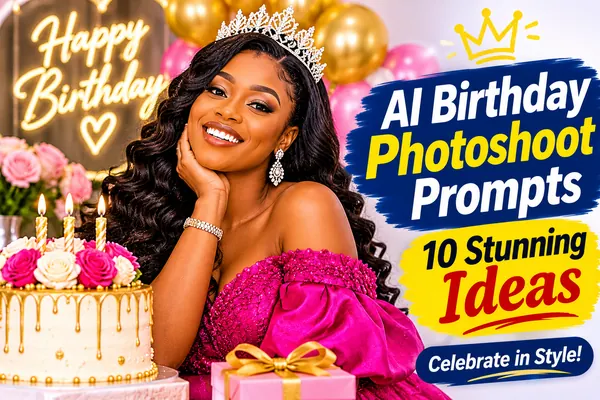
Illustrative cover artwork for Gemini AI Photo Editing Prompts: 10 Copy-Paste Ideas That Keep Your Face

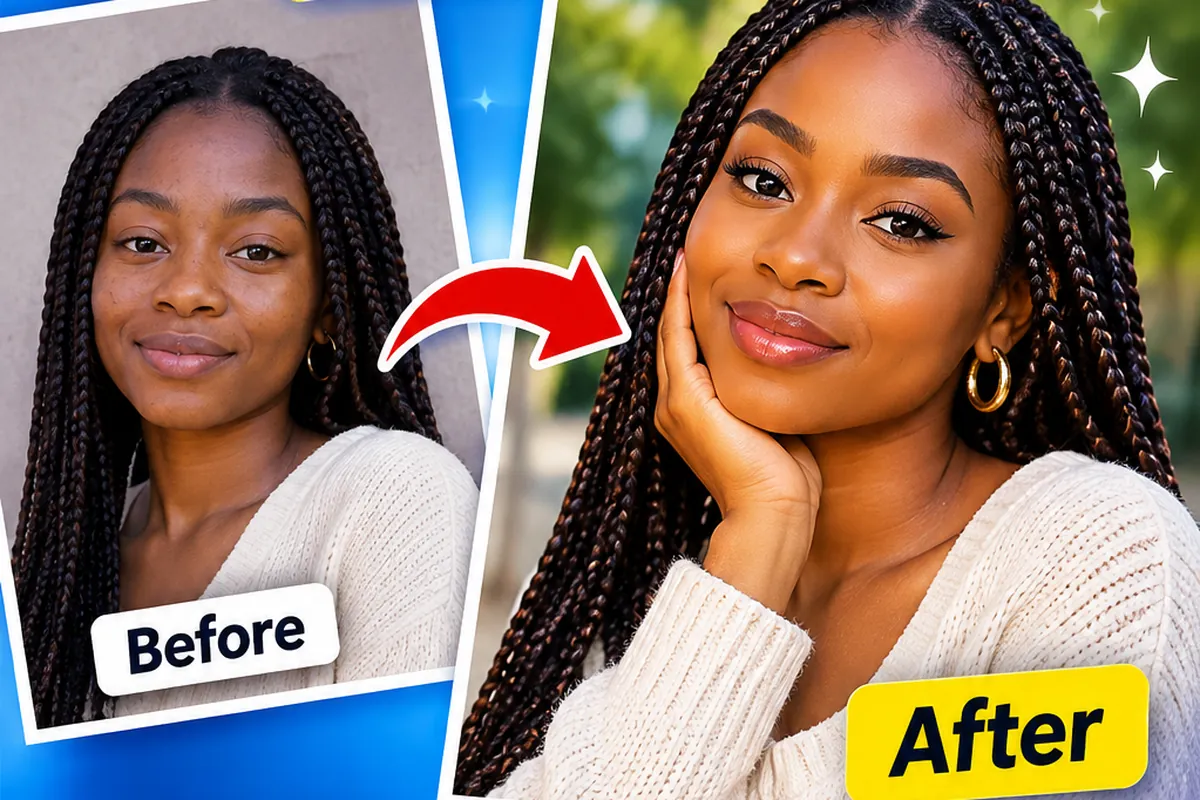
Google Gemini can edit photos you upload — changing backgrounds, lighting, outfits and style — through plain-language instructions. The quality of the result depends heavily on how specific your prompt is.

These prompts are practical, everyday edits that work for anyone, and each one protects your facial identity.

In this article
  1. How to use a prompt in Gemini
  2. How to use these prompts
  3. The 10 prompts
  4. Photography tips
  5. Frequently asked questions

How to use a prompt in Gemini

Open Gemini on the web or in the app, start a new chat, upload your photo using the add or image button, paste the prompt and send. If the result isn't right, reply with a short correction such as 'keep my face exactly the same and make the light warmer' rather than starting over.

Features, limits and availability vary by country and account and change often, so if image editing doesn't appear for you, check Google's current Gemini help pages.

How to use these prompts

  1. Choose a sharp, well-lit photo where your face is clearly visible (front-facing works best).
  2. Tap Copy prompt — or tap ChatGPT, Gemini or Grok to copy the prompt and open that tool in one step.
  3. In the AI tool, start a new chat, upload your photo, then paste the prompt (long-press → Paste on mobile, Ctrl/⌘+V on desktop) and send.
  4. Not quite right? Reply with a short correction, e.g. “keep my face exactly the same and make the background darker”.

AfroPrompt does not generate images and never sees your photos — everything happens in the AI tool you choose. Image features, limits and availability differ by tool, plan and country, and change often. Always check that tool's own terms and privacy settings before uploading photos of yourself or others.

The 10 prompts

Illustrative placeholder artwork for the Professional Background Swap promptSample soon
#1

Professional Background Swap

Replace a messy background with a clean studio look.

Keep the person exactly as they are — same face, hair, clothing and pose. Replace only the background with a clean, softly lit grey studio backdrop with a gentle gradient. Match the lighting on the person to the new background so it looks natural, with no cut-out edges. Photorealistic, high resolution, natural skin texture, realistic fabric and lighting detail, no text, logos or watermarks.

Copy & open in:

Illustrative placeholder artwork for the Golden Hour Relight promptSample soon
#2

Golden Hour Relight

Turn flat daylight into warm sunset light.

Keep everything in the photo the same, but relight the scene as golden hour: warm low sunlight from behind the person creating a soft glowing rim on the hair and shoulders, gentle warm fill on the face, and a subtle warm haze in the background. Keep skin tone natural. Photorealistic, high resolution, natural skin texture, realistic fabric and lighting detail, no text, logos or watermarks.

Copy & open in:

Illustrative placeholder artwork for the Outfit Upgrade to Smart Formal promptSample soon
#3

Outfit Upgrade to Smart Formal

Change casual clothes into a tailored outfit.

Keep the person's face, hair, body shape and pose exactly the same. Change only their clothing to a tailored navy suit with a white shirt (or an elegant navy dress), fitted naturally to their posture with realistic fabric folds and shadows. Keep the background and lighting unchanged. Photorealistic, high resolution, natural skin texture, realistic fabric and lighting detail, no text, logos or watermarks.

Copy & open in:

Illustrative placeholder artwork for the Studio Portrait Makeover promptSample soon
#4

Studio Portrait Makeover

Transform a selfie into a studio-quality portrait.

Turn this selfie into a professional studio portrait. Keep the face identical. Correct the wide-angle selfie distortion, place the person against a warm beige backdrop, add soft key light from the left with gentle fill, and frame as a head-and-shoulders portrait at eye level with an 85mm lens look. Photorealistic, high resolution, natural skin texture, realistic fabric and lighting detail, no text, logos or watermarks.

Copy & open in:

Illustrative placeholder artwork for the Remove Distractions promptSample soon
#5

Remove Distractions

Clean up people and clutter behind you.

Remove the people, signs and clutter in the background while keeping the main person and the overall location the same. Fill the removed areas with realistic matching scenery. Do not change the person's face, body or clothing. Photorealistic, high resolution, natural skin texture, realistic fabric and lighting detail, no text, logos or watermarks.

Copy & open in:

Illustrative placeholder artwork for the Rainy City Night Edit promptSample soon
#6

Rainy City Night Edit

Place yourself in a cinematic rainy street.

Place the person on a rainy city street at night with neon reflections on the wet pavement and soft bokeh lights. They hold a black umbrella. Add cool blue ambient light with a warm streetlight on the face. Keep their face and hairstyle unchanged. Cinematic colour grading, medium shot. Photorealistic, high resolution, natural skin texture, realistic fabric and lighting detail, no text, logos or watermarks.

Copy & open in:

Illustrative placeholder artwork for the Vintage Film Look promptSample soon
#7

Vintage Film Look

A nostalgic 35mm film style.

Use the uploaded photo as the reference for the person's face and identity. Keep their facial features, skin tone, face shape, hairline and expression natural and unchanged. Keep the person and scene the same but restyle the photo as if shot on 35mm film in the 1990s: slightly faded warm colours, soft contrast, natural film grain, gentle vignette and a hint of light leak at one edge. Keep skin tone and facial features natural. Photorealistic, high resolution, natural skin texture, realistic fabric and lighting detail, no text, logos or watermarks.

Copy & open in:

Illustrative placeholder artwork for the Snowy Winter Portrait promptSample soon
#8

Snowy Winter Portrait

Turn any portrait into a winter scene.

Keep the person's face unchanged and dress them in a cosy camel wool coat and knitted scarf. Place them in a snowy park with gently falling snow and soft overcast light. Add a slight rosy warmth to the cheeks, keep skin texture natural, medium shot at eye level. Photorealistic, high resolution, natural skin texture, realistic fabric and lighting detail, no text, logos or watermarks.

Copy & open in:

Illustrative placeholder artwork for the Magazine Cover Layout promptSample soon
#9

Magazine Cover Layout

A fashion-magazine-style cover image.

Create a fashion magazine cover-style portrait of the person, keeping the face identical: elegant outfit, clean colour backdrop, crisp beauty lighting, and space at the top for a title. Do not add any text, letters or logos to the image. Photorealistic, high resolution, natural skin texture, realistic fabric and lighting detail, no text, logos or watermarks.

Copy & open in:

Illustrative placeholder artwork for the Restore an Old Photo promptSample soon
#10

Restore an Old Photo

Repair and colourise an old family photo.

Restore this old photograph: remove scratches, dust and fold marks, sharpen softly, and correct fading. Add natural, realistic colour appropriate to the clothing and setting. Keep every person's face, expression and features exactly as in the original — do not beautify or modernise them. Photorealistic, high resolution, natural skin texture, realistic fabric and lighting detail, no text, logos or watermarks.

Copy & open in:

Photography tips for better results

  • Start every edit with what must stay the same, then what should change.
  • Make one big change per message; refine with short follow-ups.
  • Say 'no text, letters or logos' when you want a clean image.
  • If the face drifts, reply: 'Keep my face exactly as in the original photo.'

Frequently asked questions

Is Gemini photo editing free?

Availability and limits depend on your account, plan and country, and Google changes them regularly. Check Google's official Gemini pages for the current details.

Can I paste these prompts into ChatGPT or Grok?

Yes. They are written in plain language and work in any AI tool that edits uploaded images.

Why does Gemini change my face slightly?

Edits that move the camera angle or change lighting a lot can shift features. Ask it to keep the face unchanged, or make smaller edits one at a time.

Related prompt collections